React flow Git Branching Pattern
Free
React flow Git Branching Pattern
# React Flow Git Branching Pattern: Visualize Git Branches, Commits, and Merge History Git branching is an essential part of modern software development. It allows developers to work on new features, fix bugs, experiment with ideas, and maintain stable codebases without disrupting the main development workflow. However, as projects grow, understanding complex branching strategies and commit relationships can become challenging. The **React Flow Git Branching Pattern** from VisualFlow provides an interactive way to visualize Git branches, feature development, hotfix workflows, and merge history through a clean, node-based diagram. Built with React Flow, this example transforms traditional Git branching concepts into an intuitive visual representation, making it easier for developers, engineering teams, and technical educators to understand how different development paths connect. **Explore the example:** [https://www.visualflow.dev/templates/git-pattern](https://www.visualflow.dev/templates/git-pattern) ## What Is a Git Branching Pattern? A Git branching pattern is a visual or conceptual representation of how developers organize code changes across different branches in a Git repository. Instead of making every change directly to the main development branch, Git allows developers to create independent branches for specific tasks. These branches can be used for feature development, bug fixes, hotfixes, and experimental changes before being merged back into the main codebase. A typical Git branching workflow includes: - **Initial Commit:** Establishes the starting point of the repository. - **Feature Branches:** Allow developers to build new functionality independently. - **Hotfix Branches:** Provide an isolated workflow for urgent bug fixes. - **Merge Commits:** Bring completed changes together into a shared development history. - **Version Milestones:** Represent important development checkpoints and releases. The VisualFlow Git Branching Pattern demonstrates these relationships through connected nodes, color-coded branches, and a structured commit timeline. ## What Makes the VisualFlow Git Branching Example Special? The Git Branching Pattern is designed to make development workflows easier to understand through interactive visualization rather than relying entirely on command-line output or static diagrams. ### 1. Interactive Git Commit Visualization Represent Git commits as individual nodes connected through a visual workflow. Developers can understand how the repository evolves from its initial commit to later development milestones without manually interpreting complex commit histories. ### 2. Feature Branch Visualization Feature branches are essential when multiple developers work on different parts of an application. This example demonstrates two feature branches: - **feat:ui:** Represents user interface development. - **feat:api:** Represents API-related feature development. The green branch visually separates feature development from the main commit path before reconnecting with the later version milestone. ### 3. Hotfix Branch Management Production issues sometimes require immediate attention. Hotfix branches allow developers to address urgent problems independently of ongoing feature development. The example includes an orange `fix:auth` branch, demonstrating how an authentication-related fix can follow a separate development path before being merged. ### 4. Visual Merge History Merging is one of the most important concepts in Git version control. The diagram illustrates how feature and hotfix development paths converge at the `v0.2` milestone, providing a clear representation of how independent development activities contribute to a shared codebase. ### 5. Clean Node-Based Architecture Each commit or branch is represented by a custom visual node. The consistent node styling, branch-specific colors, and organized connections make the architecture easy to scan and understand. ## Understanding the Git Branching Architecture The example represents a simplified development workflow with an initial commit, two feature branches, one hotfix branch, and a final version milestone. ComponentExample NodePurpose Initial Commit `init` Establishes the repository starting point Version Milestone `v0.1` Represents an early development checkpoint Feature Branch `feat:ui` Represents UI development Feature Branch `feat:api` Represents API development Hotfix Branch `fix:auth` Represents an authentication fix Merge Milestone `v0.2` Represents the resulting version milestone ### How the Git Workflow Works **Step 1: Initialize the Repository** The workflow begins with the `init` node, representing the initial repository state. **Step 2: Create the First Version** The development history progresses to `v0.1` establish the starting point for parallel development. **Step 3: Start Feature Development** The workflow branches into two feature paths: - `feat:ui` for interface-related development. - `feat:api` for API-related development. These branches allow different development activities to progress independently. **Step 4: Create a Hotfix Branch** An additional `fix:auth` branch represents an isolated authentication-related fix. This approach helps separate urgent maintenance work from ongoing feature development. **Step 5: Merge Development Changes** The feature and hotfix paths converge at the `v0.2` milestone, illustrating how independent development work can contribute to a subsequent version. ## Building a Git Branching Diagram with React Flow React Flow, now part of the XYFlow ecosystem, provides a flexible foundation for building interactive node-based applications. With custom nodes, edges, and canvas controls, developers can create sophisticated visual representations of Git workflows. ### 1. Define Custom Git Node Data A reusable TypeScript structure helps maintain consistency across different commit and branch nodes. ``` type GitNodeData = { label: string; type: "commit" | "feature" | "hotfix" | "merge"; branch?: string; version?: string; }; ``` ### 2. Register Custom Node Types Custom React components allow different Git elements to have distinct visual appearances. ``` const nodeTypes = { gitNode: GitNode, }; <ReactFlow nodes={nodes} edges={edges} nodeTypes={nodeTypes} fitView /> ``` ### 3. Organize Branches and Connections React Flow edges connect commits and branches to represent the development history. ``` const edges = [ { id: "e1", source: "init", target: "v01", type: "smoothstep", }, { id: "e2", source: "v01", target: "feat-ui", type: "smoothstep", }, { id: "e3", source: "feat-ui", target: "feat-api", type: "smoothstep", }, { id: "e4", source: "feat-api", target: "v02", type: "smoothstep", }, { id: "e5", source: "v01", target: "fix-auth", type: "smoothstep", }, { id: "e6", source: "fix-auth", target: "v02", type: "smoothstep", }, ]; ``` This simplified structure illustrates how connected React Flow nodes can represent a branching workflow. Production implementations can extend it with custom handles, edge styling, commit metadata, and interactive controls. ## Key Features of a React Flow Git Branching Diagram The example demonstrates several useful capabilities for building developer-focused workflow visualization tools. FeatureDescription Custom Git Nodes Represent commits, branches, and version milestones. Branch Connections Visualize relationships between development paths. Color-Coded Workflows Distinguish feature and hotfix branches. Interactive Canvas Navigate the diagram using drag and zoom. Custom Edges Represent branching and merging relationships TypeScript Support Build maintainable and strongly typed components. ## Practical Use Cases A React Flow Git branching pattern is useful beyond simple repository visualization. ### Software Development Teams Engineering teams can use Git branching diagrams to explain development workflows, review branching strategies, and communicate repository structures. ### Developer Documentation Technical writers can create visual documentation explaining feature branches, hotfix procedures, release milestones, and merge workflows. ### Git Training and Education Students and junior developers can understand branching, merging, and commit relationships through visual examples instead of relying exclusively on terminal commands. ### DevOps and CI/CD Platforms The same visualization approach can be extended to represent automated build pipelines, deployment branches, release workflows, and integration processes. ### Repository Management Tools Developers can extend the example to create repository visualization dashboards that display real commit history and branch relationships. ## Customization Ideas The Git branching pattern can serve as a foundation for more advanced developer tools. Consider extending the example with: - **Dynamic Git Data:** Load real repository information through GitHub or GitLab APIs. - **Commit Details:** Display commit messages, authors, timestamps, and hashes. - **Branch Status Indicators:** Show active, merged, and protected branches. - **Merge Conflict Visualization:** Highlight conflicting changes between branches. - **Interactive Commit History:** Select nodes to inspect individual commits. - **Automated Layout:** Use Dagre or ELK.js to organize large branching diagrams. - **Repository Integration:** Connect the visualization to real Git repositories. These enhancements can transform a simple branching diagram into a fully interactive Git history explorer. ## Why Use React Flow for Git Workflow Visualization? React Flow is particularly useful for building custom developer tools because it provides a flexible canvas architecture with reusable nodes, customizable edges, and interactive controls. Compared with static diagrams, a React Flow implementation can support: - Interactive node selection and manipulation. - Dynamic branch and commit creation. - Custom visual representations of Git operations. - Flexible connection and layout strategies. - Scalable architecture for more complex workflows. For developers building visual programming tools, repository explorers, and software architecture platforms, React Flow offers a strong foundation for creating interactive graph-based experiences. ## Explore the React Flow Git Branching Pattern. The VisualFlow Git Branching Pattern demonstrates how React Flow can transform traditional version control concepts into an intuitive, interactive visualization. Whether you are documenting a software development process, teaching Git fundamentals, or building a developer-focused application, this example provides a practical starting point for visualizing branches, feature development, hotfixes, and merge history. **Explore the free template and start building your own Git workflow visualization.** [Explore the React Flow Git Branching Pattern](https://www.visualflow.dev/templates/git-pattern) ## Frequently Asked Questions (FAQ) ### 1. What is a Git branching diagram? A Git branching diagram is a visual representation of how commits and branches relate to one another in a Git repository. It helps developers understand parallel development, feature isolation, hotfixes, and merge history. ### 2. What is React Flow used for? React Flow is a React library for building interactive node-based diagrams, flowcharts, workflow editors, and visual applications. It supports custom nodes, edges, interactive connections, and canvas navigation. ### 3. How can I visualize Git branches using React Flow? You can visualize Git branches by representing commits and branches as custom React Flow nodes and connecting them with edges. Custom node components, color-coded connections, and automatic layouts can make the resulting Git history easier to understand. ### 4. What is the difference between a feature branch and a hotfix branch? A feature branch is created to develop new functionality independently, while a hotfix branch is generally used to address urgent bugs or production issues without interrupting ongoing development. ### 5. Can React Flow visualize real Git repository history? Yes. React Flow can be integrated with GitHub, GitLab, or other repository data sources. Repository commits, branches, and merge relationships can be transformed into nodes and edges for interactive visualization. ### 6. Is the VisualFlow Git Branching Pattern free? Yes. The Git Branching Pattern is presented as a free template on VisualFlow. Visit the template page to explore the example and its available implementation details. ### 7. Can I customize the Git Branching Pattern? Yes. You can extend the node structure, customize branch colors, add commit metadata, introduce additional development branches, and integrate external Git repository data. **Technologies:** React · React Flow · TypeScript · Tailwind CSS **Explore more interactive React Flow examples:** [https://www.visualflow.dev/](https://www.visualflow.dev/)
Architecture & Features
Free to use for commercial and personal projects.
Related Free Templates
Other popular starter patterns and canvas diagrams
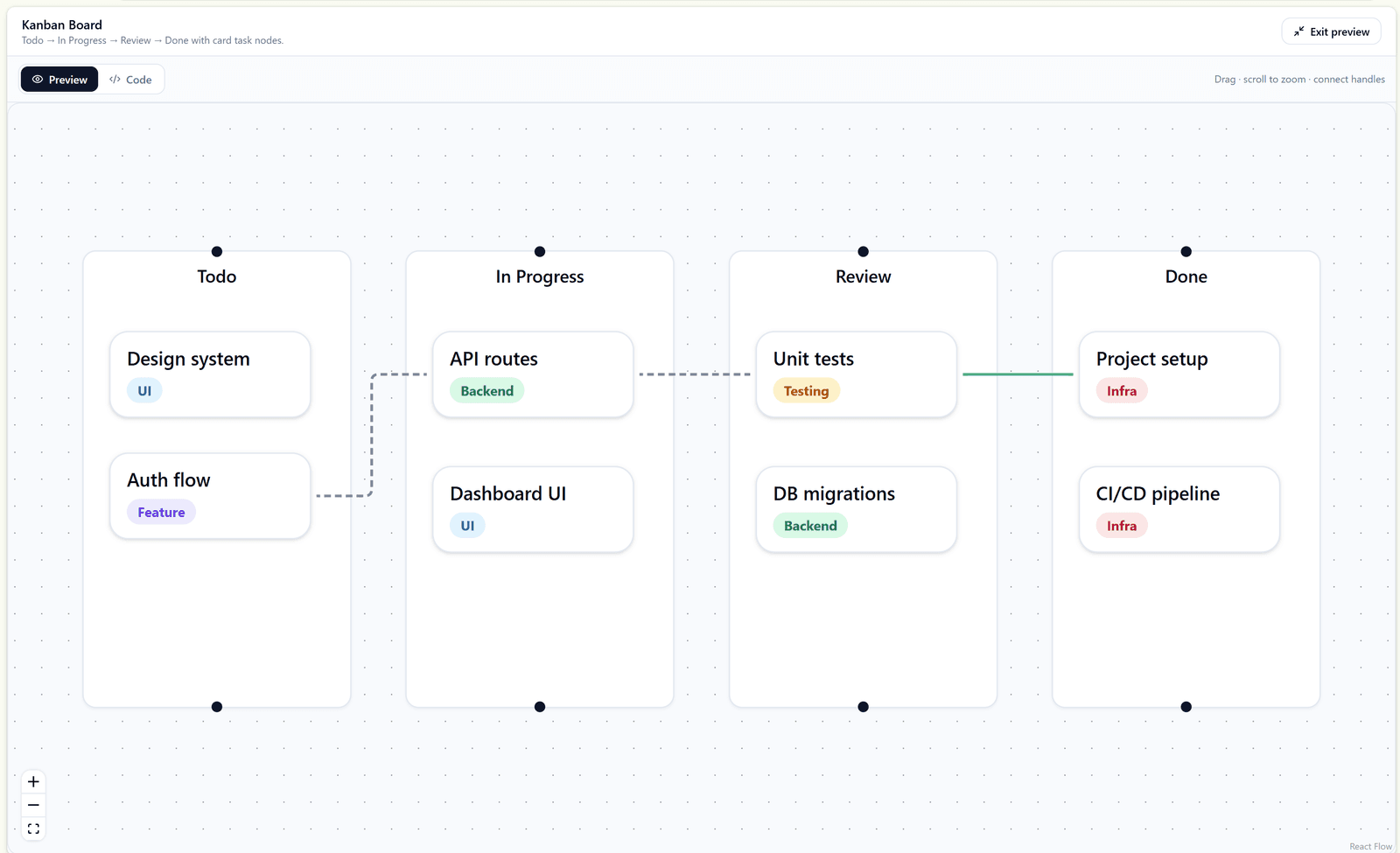
React flow Kanban Pattern
A free example demonstrating how to build a Kanban board interface using React Flow. Easily visualize and manage tasks across different stages.
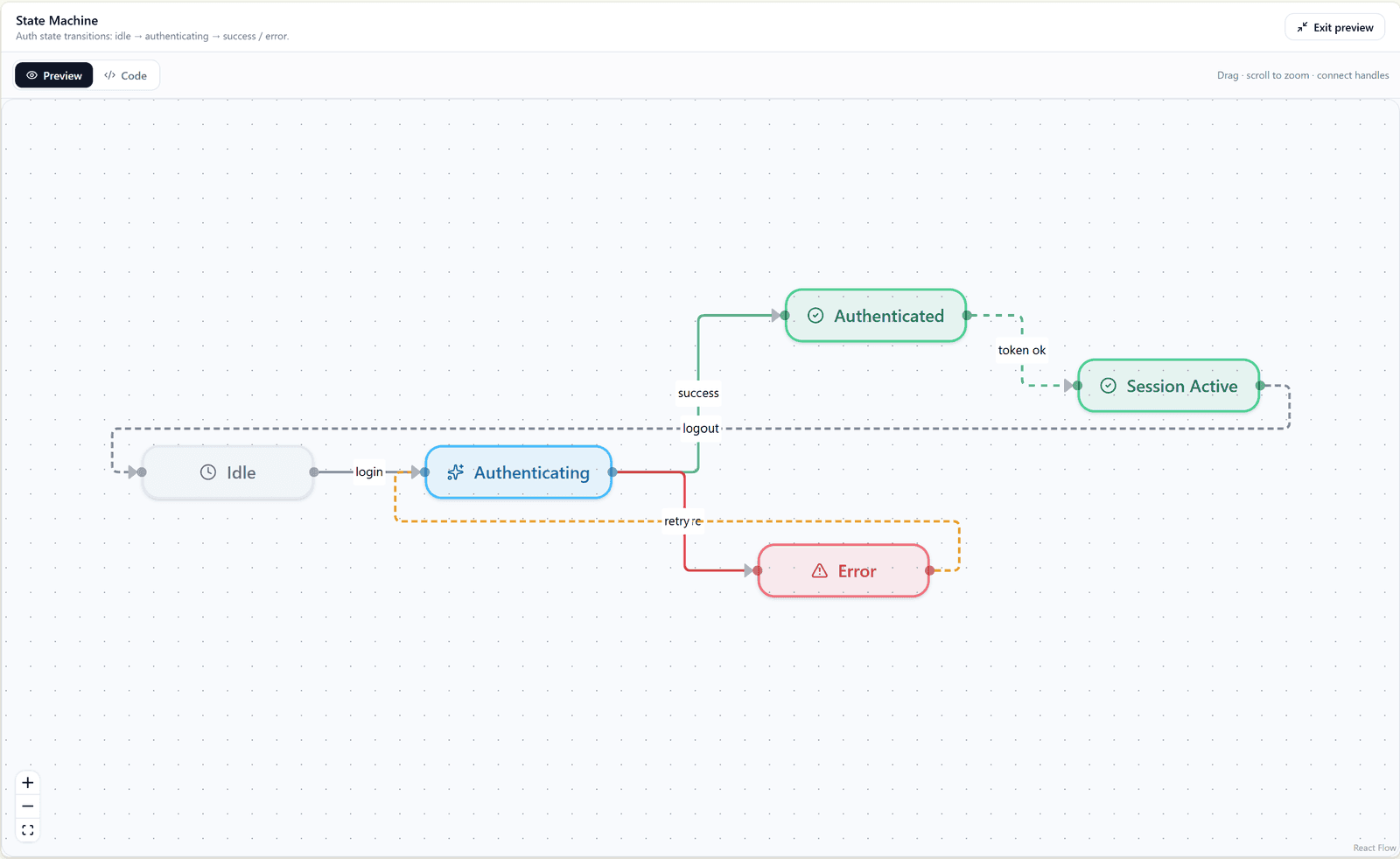
React flow State Machine
A free example demonstrating how to visualize state machines and state transitions using React Flow.
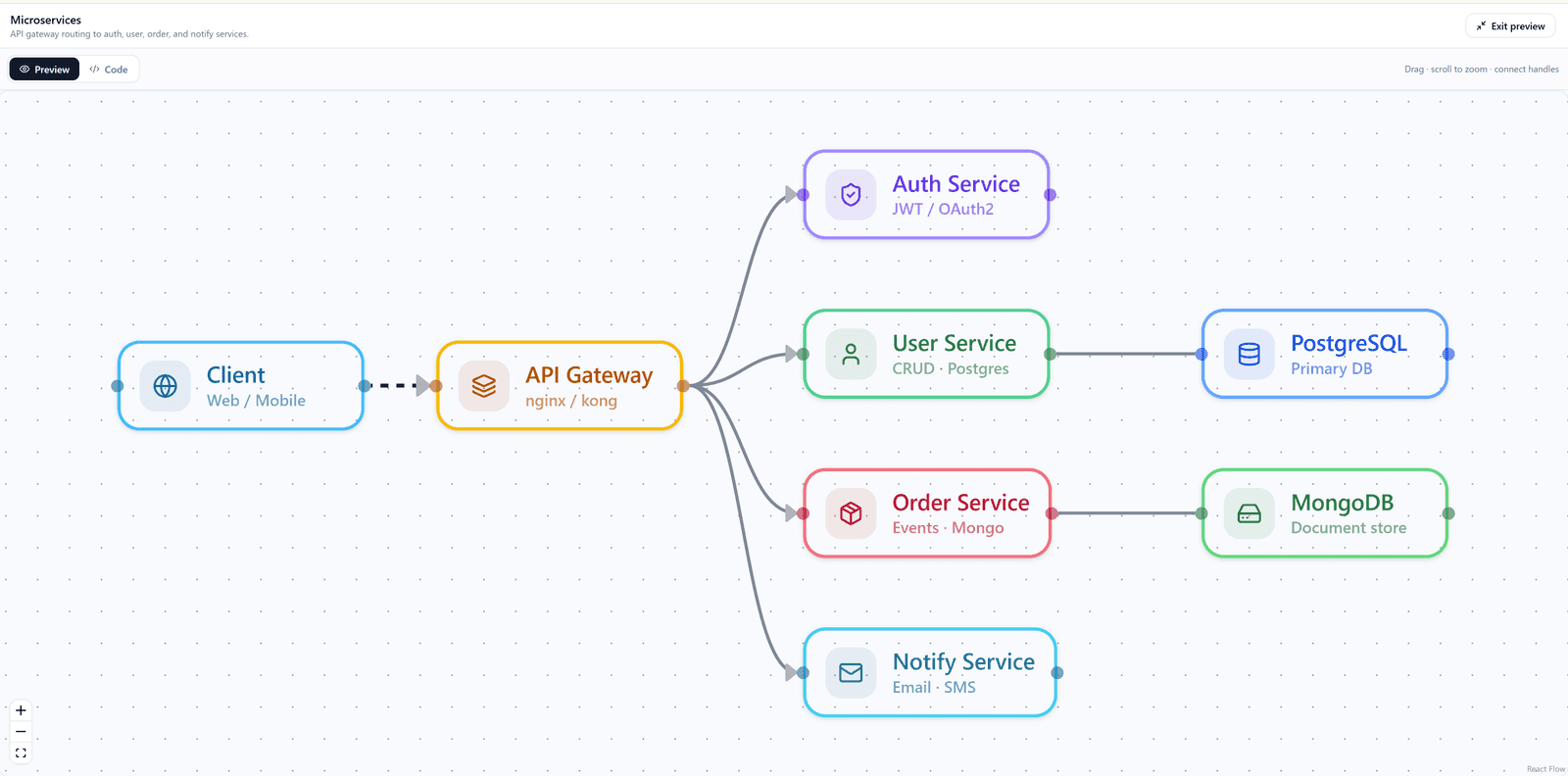
React flow Microservices Pattern
A free example demonstrating how to visualize microservices architecture and system topology using React Flow.