React Flow Editable Edges: Create, Customize, and Reshape Connections in Interactive Flow Diagrams | Interactive Editable Edges
Free
React Flow Editable Edges: Create, Customize, and Reshape Connections in Interactive Flow Diagrams | Interactive Editable Edges
# React Flow Editable Edges: Create, Customize, and Reshape Connections in Interactive Flow Diagrams Building interactive node-based applications requires more than simply connecting nodes. In many workflow editors, diagramming tools, and visual programming interfaces, users need precise control over how connections look and behave. This is where **React Flow Editable Edges** becomes particularly useful. The React Flow Editable Edges example by **VisualFlow** demonstrates how to create, reshape, and customize connections dynamically using interactive edge control points. Instead of relying on fixed connection paths, users can manually adjust edge positions, modify routing, and create more structured diagrams through an intuitive visual interface. Built with React Flow, this example showcases how editable edges can improve the flexibility, usability, and visual organization of modern node-based applications. ## What Is React Flow Editable Edges? React Flow Editable Edges is an interactive diagramming implementation that allows users to modify the shape and routing of connections between nodes. In a standard React Flow diagram, edges connect source and target nodes. However, complex diagrams often require additional control over connection paths to prevent overlapping lines, improve readability, and represent complicated relationships more clearly. With editable edges, users can interact directly with connection paths, drag control points, and reshape edges without changing the underlying node relationships. The VisualFlow example combines manual edge editing with automatic layout controls, demonstrating a flexible approach to building advanced workflow editors and interactive graph applications. ## Key Features of React Flow Editable Edges ### 1. Drag-to-Edit Edges One of the main features is the ability to reshape connections through direct interaction. Users can drag editable points along an edge to modify its path and adjust how connections travel between nodes. This provides greater flexibility when organizing complex diagrams. **Key benefits:** - Modify edge paths through drag-and-drop interaction. - Adjust connection shapes without moving connected nodes. - Create cleaner and more structured diagrams. - Improve the readability of complex node relationships. ### 2. Add and Move Edge Control Points The example demonstrates interactive control points that allow users to modify the geometry of individual connections. By adding or moving control points, developers can create customized connection paths instead of depending entirely on predefined edge routing. This is particularly useful for applications where multiple connections overlap or require specific visual positioning. **Key benefits:** - Customize connection paths. - Adjust edge direction and curvature. - Create more flexible node connections. - Improve visual separation between overlapping edges. ### 3. Custom Edge Styles Different applications require different connection styles. A workflow automation builder may use smooth curved edges, while a technical diagram editor may require structured paths. React Flow Editable Edges provides a foundation for customizing edge appearance and behavior. Developers can extend the implementation with different visual styles, colors, stroke widths, and routing approaches to match their application's design requirements. **Potential applications include:** - Workflow automation diagrams. - Software architecture visualizations. - Data processing pipelines. - Interactive system diagrams. - Visual programming environments. ### 4. Real-Time Edge Updates Interactive editing becomes more useful when changes are reflected immediately. The example highlights real-time updates during edge manipulation, allowing users to see how connections respond as they move control points. This creates a more intuitive editing experience and makes it easier to understand the relationship between nodes. **Key benefits:** - Immediate visual feedback. - Interactive connection adjustments. - More intuitive diagram editing. - Better control over connection positioning. ### 5. Automatic Graph Arrangement Manually arranging nodes and connections can become challenging as diagrams grow. The example also includes automatic layout functionality through hierarchical auto-layout. It demonstrates a longest-path layered layout approach that organizes graph elements into structured layers. Users can trigger automatic arrangement to reposition nodes into a cleaner directed acyclic graph (DAG) layout. This is especially useful when working with complex workflows containing multiple branches and interconnected components. ### 6. Shuffle Node Positions The shuffle functionality provides another way to experiment with graph organization. Users can shuffle node positions and then use automatic arrangement to bring the graph back into a structured layout. This makes it easier to explore different visual arrangements while maintaining an organized diagram. ## How React Flow Editable Edges Works The example demonstrates a straightforward interactive editing workflow: 1. **Create a node-based diagram:** Start with connected nodes representing processes, actions, or other elements. 2. **Select an edge:** Identify the connection that needs modification. 3. **Drag control points:** Move the interactive points to reshape the connection path. 4. **Customize the connection:** Adjust edge positioning and appearance according to the diagram's requirements. 5. **Rearrange the graph:** Use the automatic arrangement control to organize nodes into a hierarchical layout. 6. **Refine the diagram:** Combine manual edge adjustments with automatic positioning to achieve a clean visual structure. This combination of manual editing and automatic arrangement makes the example a useful foundation for building more advanced visual editors. ## Use Cases of Editable Edges in React Flow Editable edges are useful in applications where connection paths carry important visual information. ### Workflow Automation Builders Workflow automation platforms often contain multiple connected actions, conditions, and branches. Editable edges help users organize these connections and create more readable automation diagrams. ### Software Architecture Diagrams Software architecture tools use node-based representations to illustrate relationships between services, APIs, databases, and application components. Customizable edge paths make complex relationships easier to understand. ### Data Pipeline Visualization Data pipelines frequently contain multiple sources, transformations, and destinations. Editable connections can help developers visually organize data movement and reduce overlapping paths. ### Visual Programming Applications Visual programming environments rely on connections to represent logical relationships between components. Editable edges provide more control over how these relationships are displayed. ### Technical Diagram Editors Engineering tools, system design applications, and network visualization platforms can benefit from flexible edge routing and customizable connection paths. ## Why Use React Flow for Editable Edge Applications? React Flow provides a flexible foundation for building node-based interfaces in React applications. Its customizable node and edge architecture makes it suitable for creating interactive diagram editors and workflow builders. Developers can extend edge components to support custom rendering, interactive control points, and application-specific editing behavior. Combining React Flow with graph layout libraries such as ELK.js can also help organize complex diagrams automatically. The result is a flexible architecture for building visual applications where users need both precise connection editing and structured graph layouts. ## Frequently Asked Questions (FAQ) ### What are editable edges in React Flow? Editable edges in React Flow are customizable connections between nodes that users can interact with to modify their visual paths. They can be extended with draggable control points, custom routing, and different edge styles. ### How can I create draggable edge control points in React Flow? You can implement draggable control points by creating custom edge components and rendering interactive elements along the connection path. These points can update the edge geometry as users drag them. ### Can React Flow edges be customized? Yes. React Flow supports custom edge components, allowing developers to customize connection appearance, routing, labels, interaction behavior, and other visual properties. ### Can I automatically arrange nodes after editing edges? Yes. You can integrate graph layout engines such as ELK.js or Dagre to automatically organize nodes. This can help maintain a clean graph structure after manual editing. ### What is the difference between editable edges and standard React Flow edges? Standard edges generally follow their configured connection paths, while editable edges provide additional interaction for modifying those paths through control points and custom editing behavior. ### Which applications benefit from editable edges? Workflow builders, visual programming tools, data pipeline editors, software architecture diagrams, and technical visualization platforms can all benefit from editable edge functionality. ## Build Interactive Diagram Editors with VisualFlow React Flow Editable Edges demonstrates how interactive connection editing can make node-based applications more flexible and user-friendly. By combining draggable control points, custom edge styling, real-time visual updates, and hierarchical auto-layout, developers can create diagramming experiences that offer greater control over complex connections. Whether you are building a workflow automation platform, a visual programming environment, or a technical diagram editor, editable edges provide an important foundation for creating advanced React Flow applications. **Explore the React Flow Editable Edges example on VisualFlow and discover how to build more flexible, interactive, and customizable node-based interfaces.** [Explore React Flow Editable Edges – VisualFlow](https://www.visualflow.dev/templates/editable-edge)
Architecture & Features
Free to use for commercial and personal projects.
Related Pro Examples
Explore our newest commercial React Flow templates & workflows
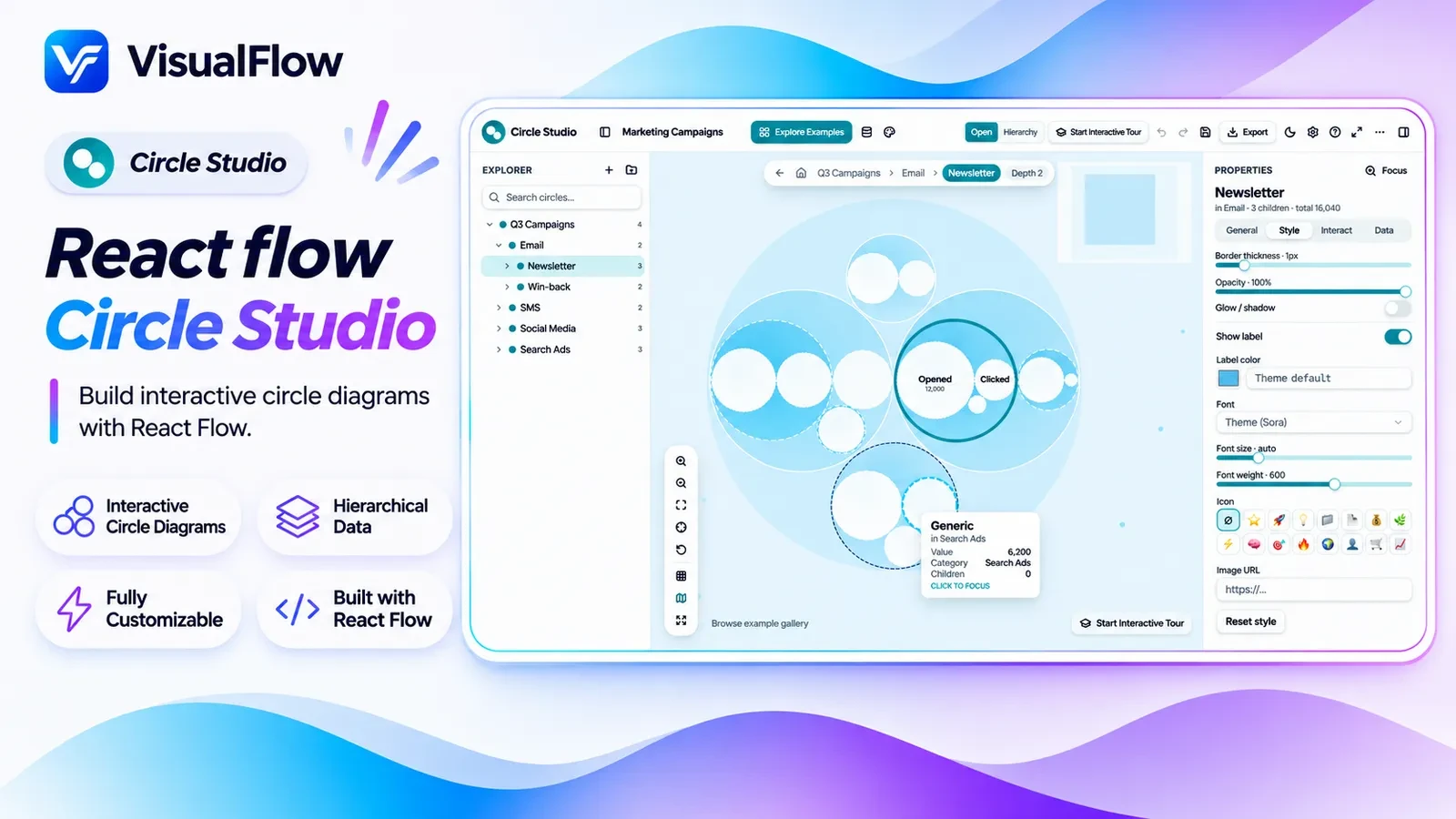
React Flow Circle Studio: Create Interactive Circle Packing Visualizations for Hierarchical Data
React Flow Circle Studio by VisualFlow demonstrates an interactive approach to hierarchical data visualization using a zoomable circle packing layout. Instead of representing information through conventional tables or linear charts, circle packing organizes data into nested circles. Each circle represents an item or category, while smaller circles inside it represent its children or related elements. This visualization technique makes it easier to understand hierarchical structures, explore relationships, and navigate datasets through an interactive visual representation. Whether you're developing data visualization dashboards, exploring nested datasets, building analytical interfaces, or creating interactive information explorers, React Flow Circle Studio provides an example of how hierarchical data can be presented through a circle-based visual layout.
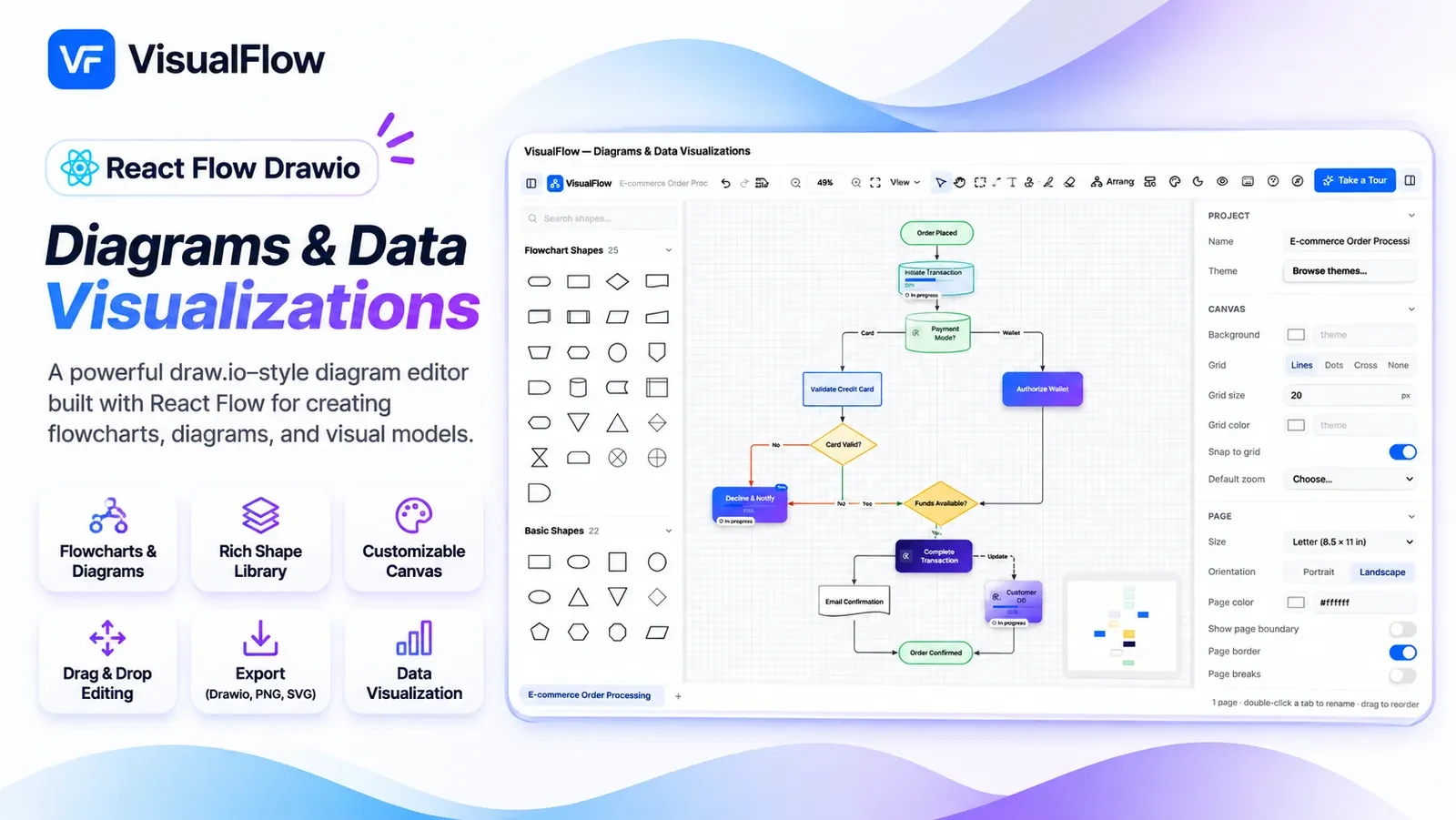
VisualFlow Diagram Maker – Flowcharts, BPMN & Data Visualization
Create professional flowcharts, BPMN diagrams, and data visualizations with VisualFlow. Explore customizable nodes, infinite canvas, templates, and advanced editing tools.
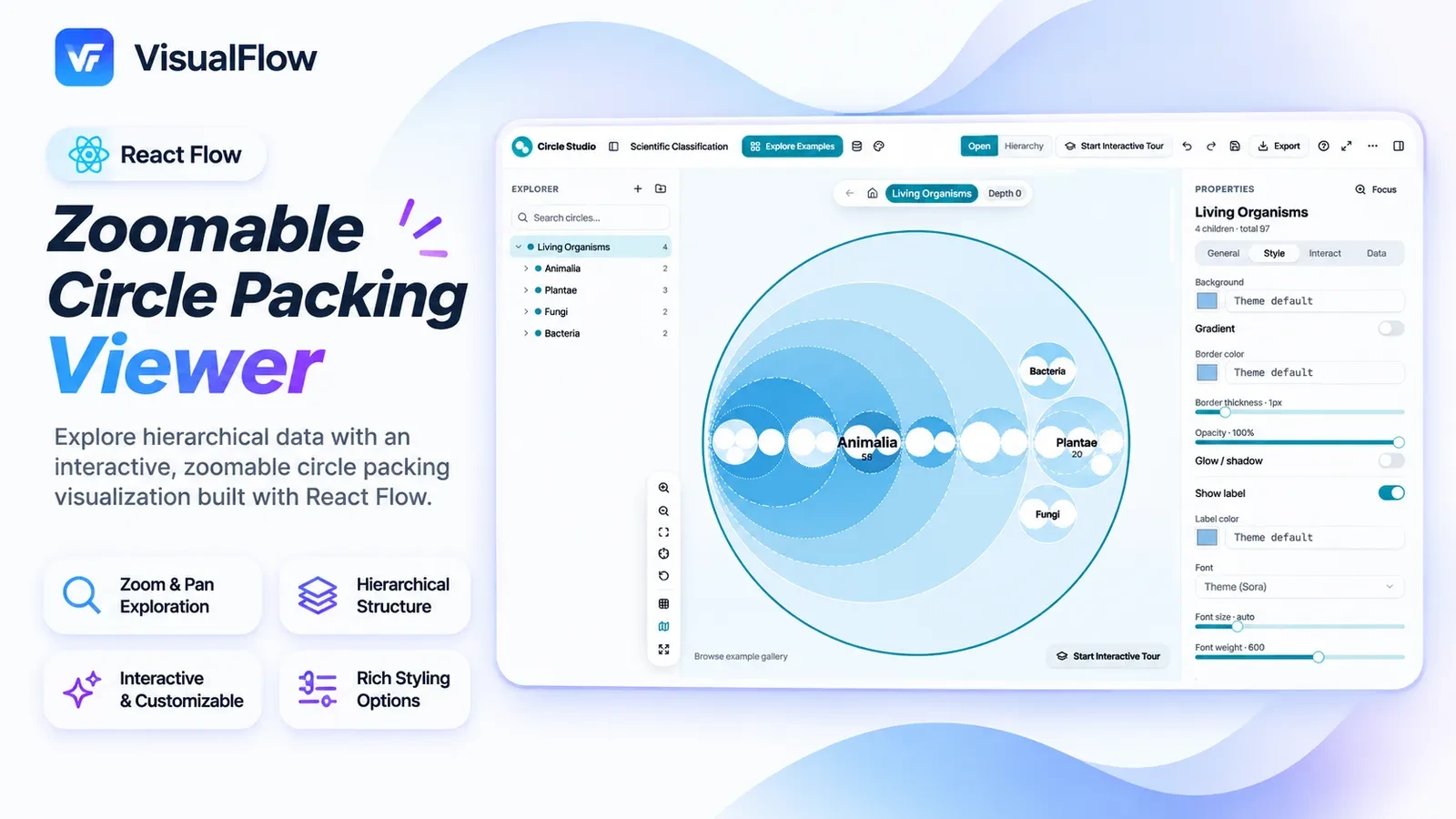
React Flow Zoomable Circle Packing Viewer: Explore Hierarchical Data Through Interactive Circle Visualization
Explore hierarchical data with a React Flow Zoomable Circle Packing Viewer. Discover interactive zooming, nested circles, custom styling, and data visualization features.